


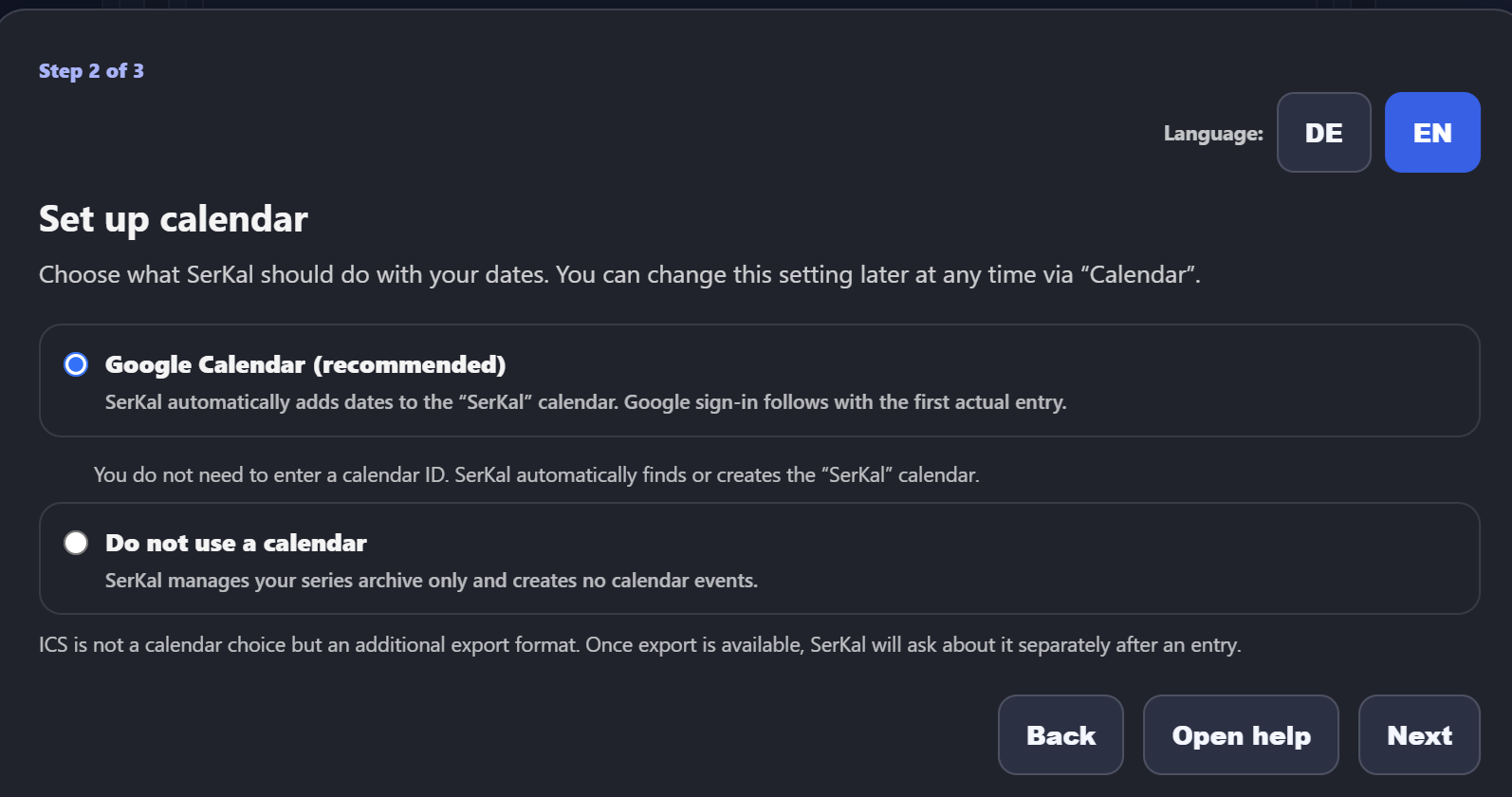
Which calendar option is right?
You opened this page from “Open help” in the second step of SerKal's initial setup. Here is what the two current choices mean.
The two current choices
Google Calendar (recommended)
Recommended if SerKal should add episode dates directly to Google Calendar and update them later. SerKal uses an existing calendar named SerKal or creates it automatically. You do not have to enter a calendar ID.
Do not use a calendar
SerKal manages your local series archive but does not create calendar events. You can change this setting later at any time via “Calendar”.
ICS will be an additional export:
ICS is not a calendar choice in this setup. Once export is available, SerKal will ask about it separately after an entry. This will allow dates to be passed to other calendar applications as well.
For Google Calendar:
Select the first option and continue with “Next” to the summary. Only “Save all” stores the TMDB and calendar settings together. You can change this choice later at any time via “Calendar”.
What happens during Google sign-in
- Create the first actual calendar entry in SerKal.
- For this first entry, SerKal opens the Google account selection in your browser.
- Allow the access requested for SerKal.
- Return to SerKal afterwards.
That is normally all you need to do. SerKal finds the SerKal calendar itself or creates it automatically.
Important for end users:
You do not need Google Cloud, a client ID, a JSON file or a calendar ID. These technical details are not part of the user setup.
If the connection does not work
- First check that you are signed in to the intended Google account in your browser.
- Start the connection again from SerKal and make sure you allow the requested access.
- If you cancelled the process or denied access, you can simply start it again from SerKal.
- If the problem remains, open the normal SerKal help page for current notes and further support.